Keyboard
Keyboard Tester Troubleshooting: Find the Problem Step by Step
Start with the symptom you can reproduce. A dead key, a failed combination and an unexpected character need different checks.
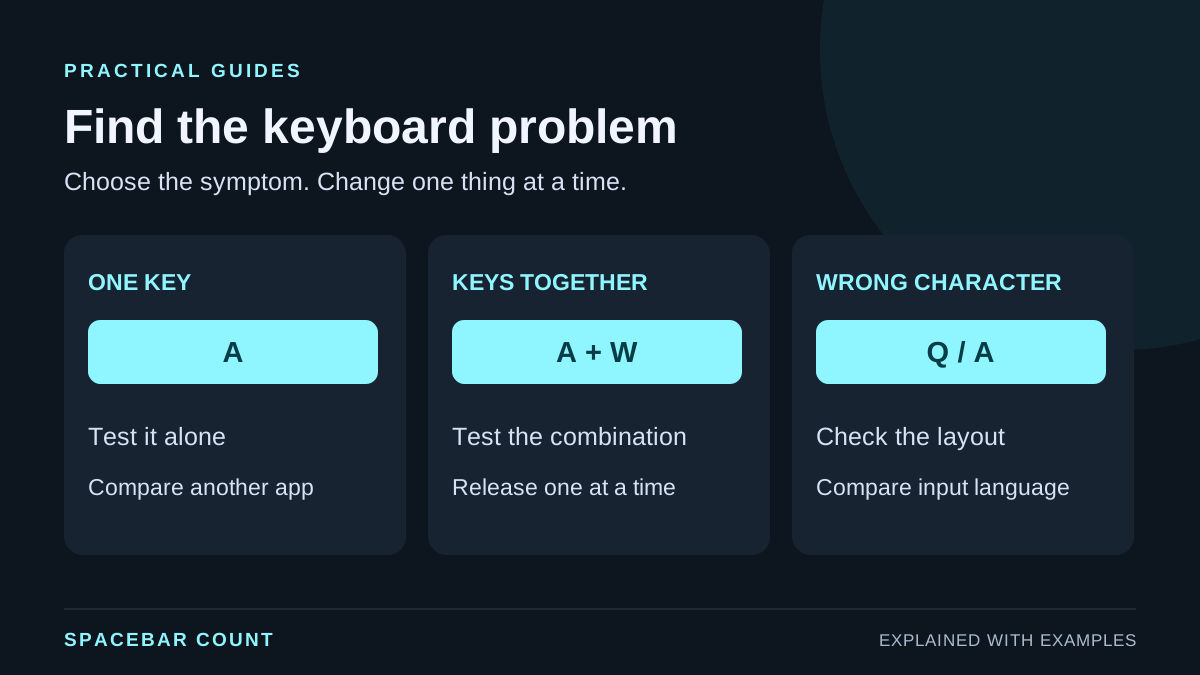
Choose the symptom before changing settings
Find a useful starting point
Choose the symptom to see a short sequence of checks. This guide does not automatically diagnose your hardware.
- Test the key alone, with the tester focused.
- Try the same key in a plain text editor.
- Compare another USB port or another computer before blaming the switch.
Start with a repeatable observation, then compare one change at a time.
Write down the affected key, the application, and whether the issue happens every time. Keep the keyboard layout and connection fixed for the baseline test.
Make a baseline test in the matching layout
- Open the keyboard tester and select a matching layout from the available keyboard families.
- Click the keyboard test area so the page receives input.
- Press and release each affected key separately. Watch the highlighted key, last-key display and held-key count.
- Try nearby keys as a comparison, then release everything before the next test.
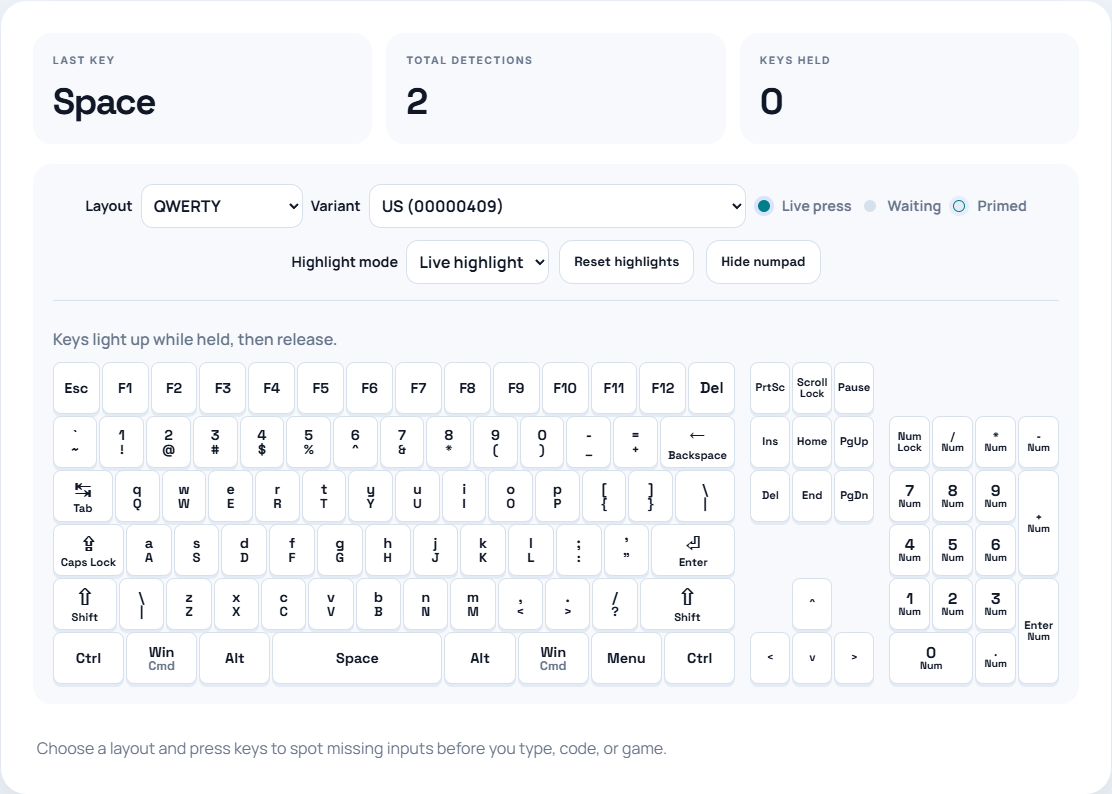
The total count is a record of inputs received by the page, not a measurement of switch health. A missing browser event is a useful observation but not a complete explanation of the cause.
If one key does not register
Try the same key in a plain text editor. If it works there, compare browser focus, shortcuts, extensions and remapping software. An application can handle input differently from a web page.
If the key fails across applications, check the connection. For USB, reconnect the keyboard and try a different direct port rather than a hub. For a wireless keyboard, check power and the connection mode. Compare another computer or keyboard if one is available.
Look for visible obstruction around a key without assuming that cleaning or replacing a switch is always the right next step. Follow the keyboard maker’s instructions for physical maintenance.
If keys fail only when held together
First confirm that each key works alone. Hold your exact combination, then release one key at a time. Note when the missing input returns.
Different combinations can behave differently even when the number of held keys is the same. Use the ghosting and rollover test guide to distinguish a missing intended input from an unexpected extra input.
Compare wired and wireless modes if supported, and check your model’s rollover documentation. A successful combination in one connection mode does not establish every other mode’s behavior.
If the key registers but the character is wrong
Compare the system input language, the physical key labels and the tester’s selected layout. Physical key position and produced character are separate concepts. For example, the same position can produce different characters in different language layouts.
Check modifier keys such as Shift and AltGr, plus any remapping or function layer you use. Compare the output in a text editor. Do not remove a layout choice or change hardware merely to make a drawing match a different keyboard.
Record evidence before changing more things
| Record | Example |
|---|---|
| Physical input | W + left Shift + Space |
| Observed result | Space works alone but is missing in this combination |
| Environment | Keyboard model, cable/Bluetooth, browser, system layout |
| Comparison | Same combination in another application or on another computer |
This record helps you decide what to test next and gives support a reproducible case. Avoid changing firmware, drivers and input mappings at the same time: if the behavior changes, you will not know which change mattered.
The tester does not automatically certify NKRO, diagnose a broken switch, or distinguish mechanical key chatter from the operating system’s key-repeat behavior.