Lists & groups
Randomize a List in Excel or Google Sheets Without Breaking Rows
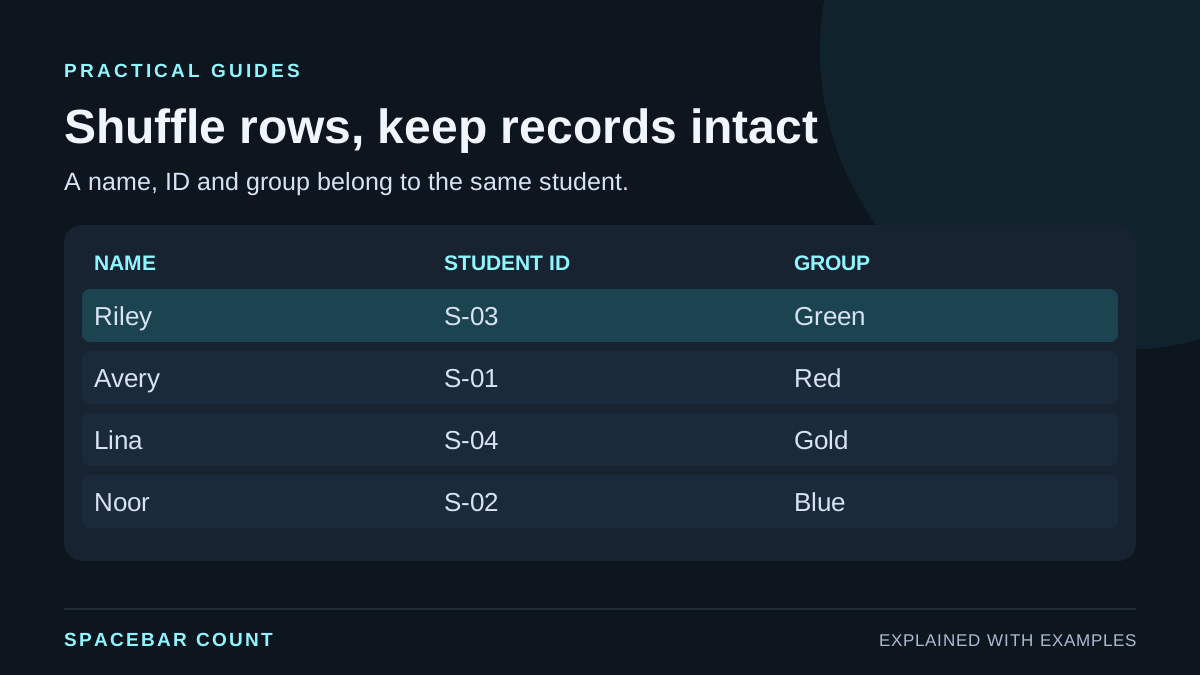
Shuffle complete records together. Sorting only a name column can silently attach each person to someone else’s ID, group or contact information.
Choose a method that matches your data
| Your input | Recommended approach |
|---|---|
| One column of names or tasks | Use the browser list randomizer. |
| Several columns belonging to each person | Shuffle the entire row range in your spreadsheet. |
| A selection of people, not a complete order | Use a choice picker, with its repeat rule chosen explicitly. |
A shuffle changes order; it does not require deleting repeated text. Two students called Alex can be two valid records. Keep an ID or another distinguishing field if identical labels might be confused.
See what goes wrong when names move alone
Keep each student’s fields together
Choose the incorrect names-only operation to compare it with a full-row shuffle. This is a four-record illustration.
| Name | Student ID | Group |
|---|---|---|
| Avery | S-01 | Red |
| Noor | S-02 | Blue |
| Riley | S-03 | Green |
| Lina | S-04 | Gold |
Original example: four records, with all fields belonging to the same student.
After a correct shuffle, Riley must still have ID S-03 and group Green. The row position may change; the relationships between its cells must not.
Shuffle a single-column list without a spreadsheet
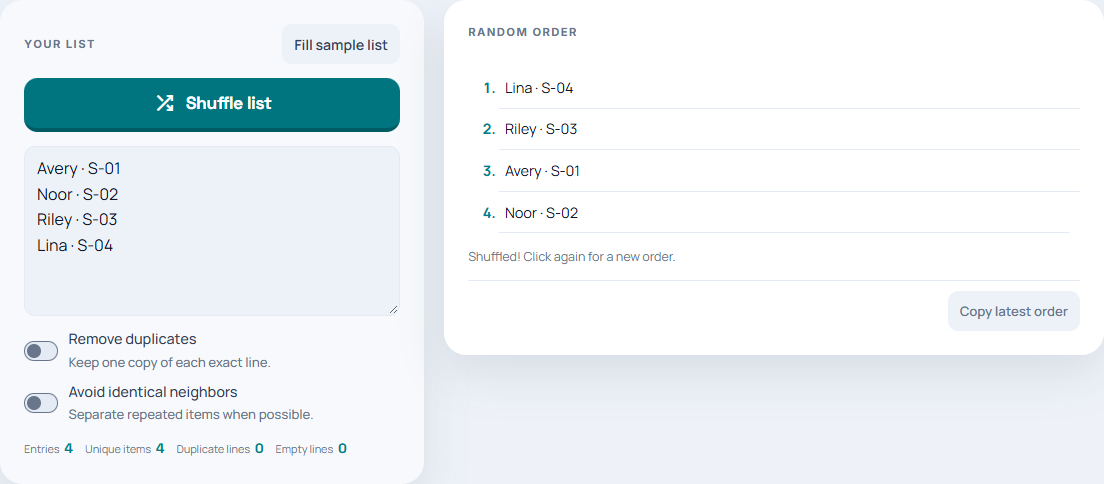
- Open the list randomizer.
- Paste one entry per line. Keep distinguishing labels if two entries have the same visible name.
- Decide whether duplicate removal is appropriate. Leave it off if repeated labels are intentional.
- Shuffle the list and copy the order you want to keep.
Excel: randomize complete rows with SORTBY
For a four-record example, put headers in A1:C1 and data in A2:C5. In an empty area starting at E2, enter:
=SORTBY(A2:C5,RANDARRAY(ROWS(A2:A5)))SORTBY returns the three-column records sorted by one random key per data row. The output occupies E2:G5, so keep that area clear. The headers are outside the shuffled data range.
This formula uses dynamic-array functions available in modern
Excel, including Microsoft 365, Excel 2021 and Excel 2024. If
your edition lacks them, add a helper column containing
=RAND() for every record, select the complete data
range, and sort by that helper column.
Formula names and argument separators can depend on your spreadsheet language and locale. The example uses English function names and commas.
Google Sheets: sort rows by a random helper column
- Put the same headers in A1:C1 and records in A2:C5.
-
Enter
=RAND()in D2 and fill it down through D5. Each data row needs its own helper value. - In an empty area starting at F2, enter the formula below. Leave F2:H5 clear for the result.
=SORT(A2:C5,D2:D5,TRUE)The helper range has four rows, matching the four-row data range. SORT moves A:C together using those helper values. Do not sort column A by itself and assume the IDs will follow.
You can also select the complete A2:D5 range and use the spreadsheet’s range-sort menu with D as the sort column. Check that the selection includes every field that belongs to the record.
Save a fixed order and verify it
Random formulas can recalculate. To keep the chosen order, copy the resulting records to a separate blank area and use Paste special → Values only in Google Sheets or the Values paste option in Excel. Keep this fixed copy as the result you share.
Before using it, check the record count, check that each ID still occurs once, and confirm two known name/ID pairs stayed together. A random order is allowed to leave some records in their original position; that alone is not a failed shuffle.
If you need groups rather than one ordered list, the random groups guide explains how to account for everyone when sizes do not divide evenly.