Spreadsheets
Generate Random Dates in Excel and Google Sheets
Start with real date cells, draw within an inclusive range, and decide which days are eligible before filling the column. The same basic method works in Excel and Google Sheets.
Set up the start and end dates
Quick formula: put your start date in B2 and
end date in B3, then enter
=RANDBETWEEN($B$2,$B$3) in D2. Format the result
as a date. Both endpoints are eligible.
Use the date controls or a DATE formula to create the two
inputs. Text such as 04/05/2026 can mean different
dates in different locales. For an unambiguous example, enter
the formulas below rather than relying on how a typed slash date
is interpreted.
| Cell | Formula or value | Meaning |
|---|---|---|
| B2 | =DATE(2026,4,1) |
1 April 2026: first eligible date |
| B3 | =DATE(2026,4,30) |
30 April 2026: last eligible date |
| D2 | =RANDBETWEEN($B$2,$B$3) |
One randomly selected day in that range |
Check that the start is not after the end. The dollar signs keep the input references fixed when you fill D2 down. Each result cell makes a new draw; repeats are allowed, and the output is not automatically sorted.
Generate one date or fill a column
=RANDBETWEEN($B$2,$B$3)In Excel, select D2 and choose a Date format from the Home tab’s number-format control. In Google Sheets, use Format → Number → Date. Fill the formula down to create additional results.
A result such as 46129 is usually a date serial displayed as a number. Changing the number format changes its appearance; it does not require drawing a different date. Keep start, end and result cells formatted consistently when checking the range.
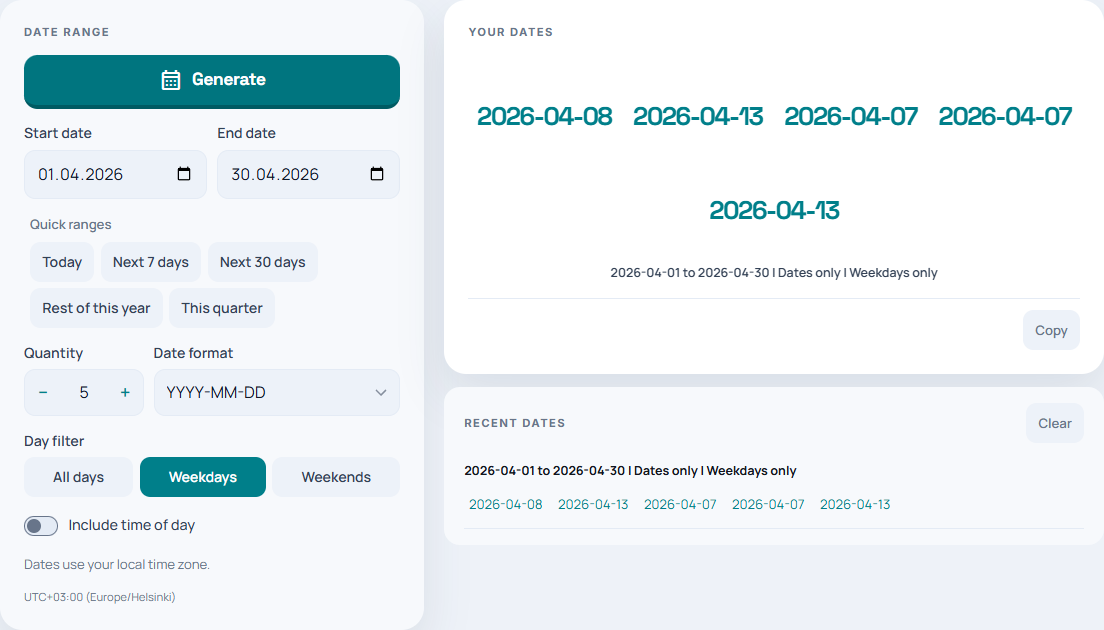
For a small, one-off draw, use the random date generator instead of creating a sheet. It supports a date range, weekday/weekend filters, output formats and an optional time, with up to ten results per draw.
Generate random weekdays without rejection
See which days can be drawn
This fixed April example lets you compare the eligible calendar days before drawing. Change the filter, then draw a date.
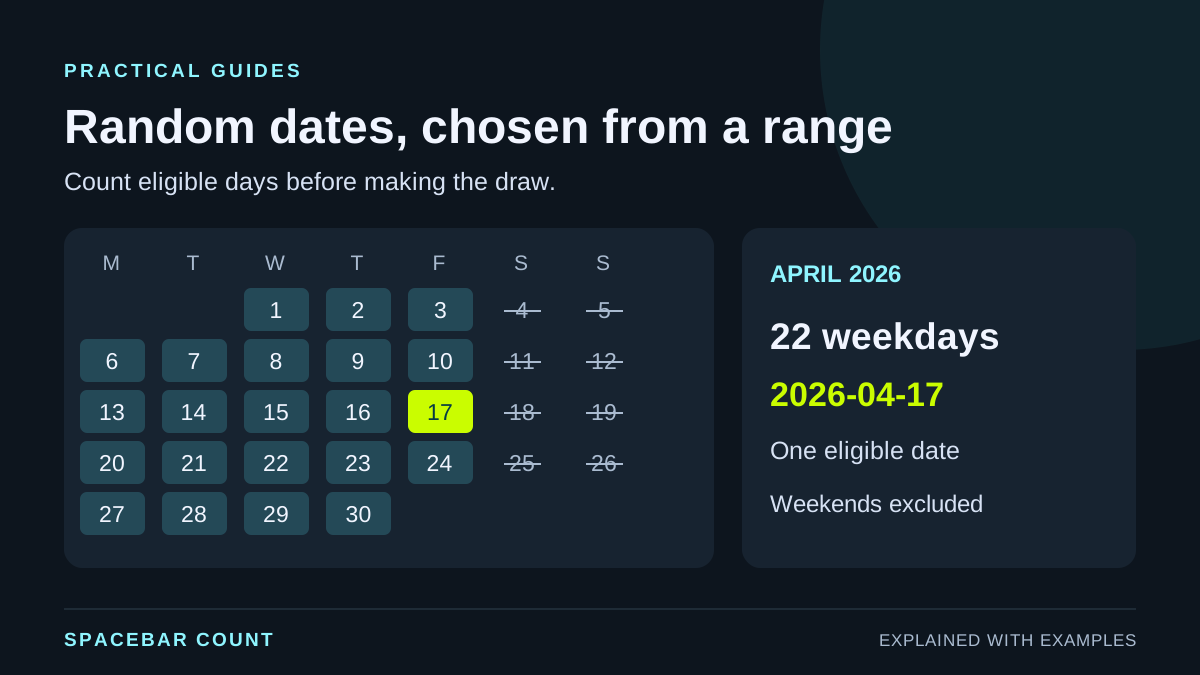
April 2026 · 22 eligible days
Example draw: 2026-04-17. Excluded days are crossed out. Weekdays means Monday–Friday; holidays are still eligible.
April 2026 has 22 weekdays. The static example selects Friday 17 April.
For Monday–Friday dates, count the working days first, draw a
position from 1 through that count, then move forward by that
many workdays. The weekend code 1 means Saturday
and Sunday. The formula works with the B2 and B3 date inputs
above.
=IF(NETWORKDAYS.INTL($B$2,$B$3,1)=0,"No weekdays",WORKDAY.INTL($B$2-1,RANDBETWEEN(1,NETWORKDAYS.INTL($B$2,$B$3,1)),1))The starting point is B2 minus one day so that an eligible B2 can be the first result. A weekend-only range returns “No weekdays” instead of asking RANDBETWEEN to draw from an empty pool. Keep B2 no later than B3.
Weekdays and business days are different requirements. If holidays must be excluded, maintain a holiday-date range and pass that same range as the holidays argument to both NETWORKDAYS.INTL and WORKDAY.INTL. The browser tool’s weekday switch does not provide a holiday calendar.
Add a random time at whole-minute resolution
If D2 already contains the chosen date, put this in E2 to add any minute from 00:00 through 23:59:
=D2+RANDBETWEEN(0,1439)/1440Format E2 as a date and time. A day contains 1,440 minutes, so the added fraction stays within D2’s calendar day. A value of zero represents midnight. This example does not generate seconds or enforce appointment-length spacing.
For a restricted time window in the browser tool, enable the time option and set the earliest and latest times. Decide whether you need a calendar date, a local clock time, or a timezone-aware timestamp; those are different data requirements.
Keep the chosen dates from changing
Random formulas can produce new results when the sheet recalculates. Once you want to keep a draw, copy the output into a separate destination and paste values only. In Excel, choose a Values paste option; in Sheets, use Edit → Paste special → Values only. Apply the date or date-time format to the destination if needed.
- Confirm every result is between the start and end dates.
- For a weekday-only draw, confirm no result falls on Saturday or Sunday.
- Keep a values-only copy and compare it with the result you intended to save.
Repeated dates are valid for these formulas. If you require different dates, create the eligible day list, shuffle it and take a subset. Do not remove duplicates from a requested sample and assume you still have the requested number of dates.
Common problems and the right next step
| Problem | Check |
|---|---|
| A large whole number appears | Apply a date number format. |
| The day and month look reversed | Check the locale and use DATE(year,month,day) for inputs. |
| The same date appears twice | These are independent draws; uniqueness requires sampling a day list. |
| The draw changes after editing | Save a values-only copy once you choose a result. |
| The formula is rejected | Check localized function names and comma versus semicolon argument separators. |
For keeping names, IDs and dates together when you shuffle records, follow the whole-row randomization guide. For a new list of distinct numeric IDs, use the unique random-number formulas.