Lists & groups
Random Groups With an Odd Number of Students
An uneven class size needs an explicit rule. You can include everyone in groups that differ by one, make a trio among pairs, or deliberately keep a waiting place.
Start with the number of groups or the group size
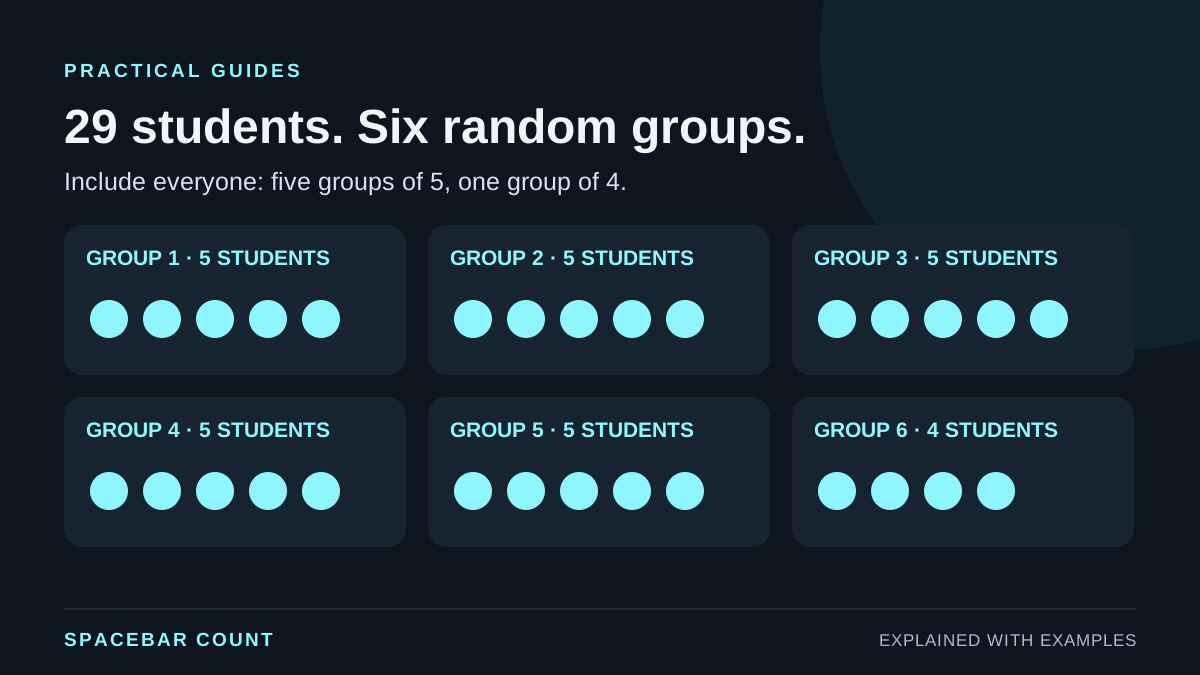
For 29 students in six groups: choose the group-count mode, set 6 groups, and leave the waiting-place option off. The result contains everyone: five groups of five and one group of four.
These are two different requests: “give me six groups” and “put no more than six people in each group.” The first fixes the number of groups; the second starts from a desired size and derives a group count. Choose the constraint that matters for your room, activity or equipment.
Random assignment also does not mean skill-balanced teams. If your activity requires balanced ability, accessibility arrangements or particular student separations, a fully random split does not enforce those requirements.
Compare three ways to include 29 students
See where the extra student goes
The numbers identify the 29 example students. This illustration compares group sizes, not a live random assignment.
All 29 included: five groups of 5 and one group of 4.
| Goal | Setup | Result for 29 |
|---|---|---|
| Six groups, everyone included | Group count 6; waiting option off | Five groups of 5; one group of 4 |
| Pairs with one trio | Group count 14; waiting option off | Thirteen pairs; one group of 3 |
| Only pairs, one person waits | People per team 2; waiting option on | Fourteen pairs; one waiting student |
Create six random groups in the tool
- Open the team generator and enter one student per line.
- Choose Number of teams and enter 6.
- Leave Send leftovers to bench off if everyone should join a group.
- Click Generate teams. Check that the total input count is 29 and that no one is on the bench.
- Copy the groups when you are ready to use the assignment.
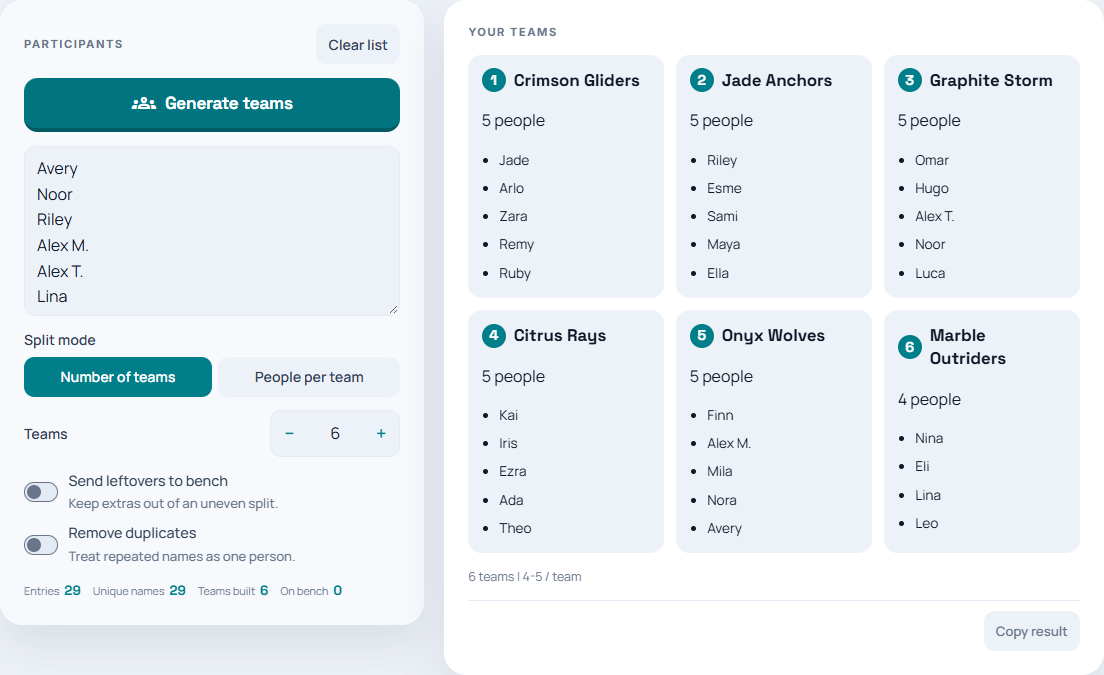
If the input contains the same person twice, correct that record. If two different students share a first name, add a distinguishing label. Do not remove one of them merely because the visible first names match.
Make pairs when there is an odd number
With 29 students, you cannot make only two-person groups and include everyone at once. For everyone to participate simultaneously, choose 14 groups with Send leftovers to bench off. One group has three people and thirteen groups have two.
If the activity requires exactly two people at each station, choose People per team with size 2 and enable Send leftovers to bench. Fourteen pairs can work while one person waits. Plan how that person rotates in, rather than leaving the exception unexplained.
With size 2 and Send leftovers to bench off, this tool makes 15 groups: fourteen pairs and one single-person group. That is different from a trio. Use the 14-group setting when a trio is your intended solution.
Check the roster before sharing the groups
Use a simple reconciliation:
people in groups + people waiting = eligible input
names. In the six-group example,
5 + 5 + 5 + 5 + 5 + 4 + 0 = 29.
Check that each eligible person appears once, then copy the result before leaving the page. Announce your rule before repeatedly regenerating groups: rerolling until a preferred outcome appears changes the process you told participants you would use.
If the task is choosing the next person to speak rather than allocating everyone, use a no-repeat student picker round instead.