Spacebar Tests
Mobile CPS testing: taps, timing, and device tips
Mobile results can vary. Use consistent grip, finger placement, and timing rules to keep tests fair.
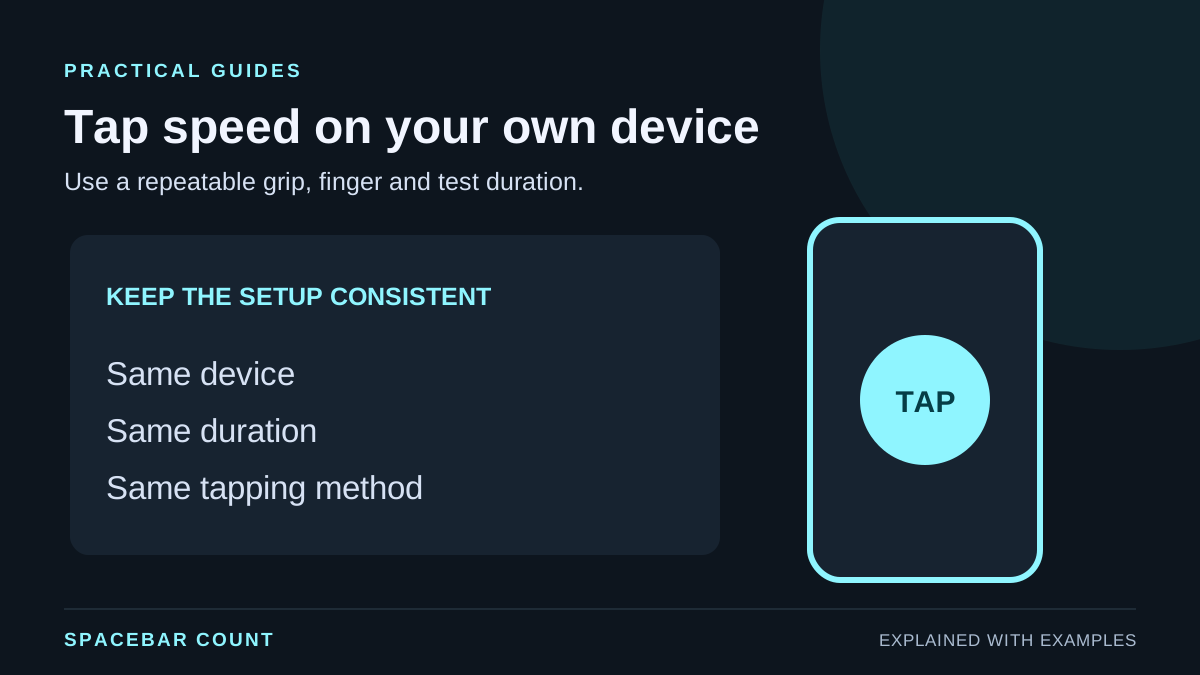
Before you start
Mobile CPS results can swing more than desktop because grip, screen response, and device performance vary. Use a consistent setup so your scores stay comparable.
1. Prep the device
Reduce performance spikes by keeping the phone focused on the test.
- Close background apps and extra tabs.
- Turn off battery saver if it throttles performance.
- Lock orientation so the page does not shift.
2. Use one hand position
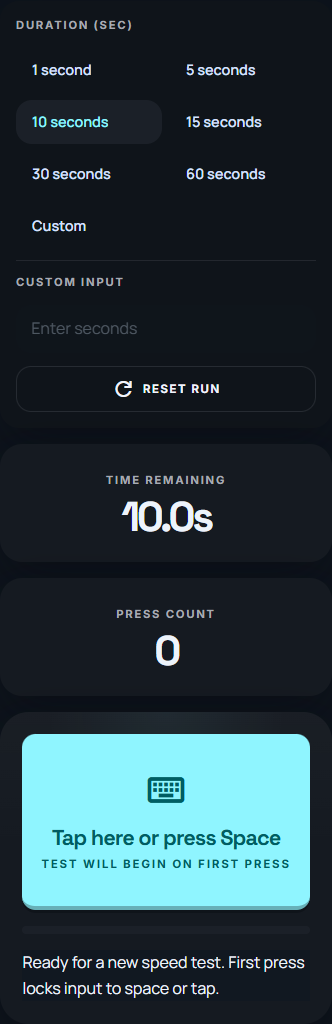
Choose a grip and keep it identical each run. Switching thumbs or swapping hands will change results.
3. Control your tap zone
Tap in the same spot on the screen. Drifting toward the edge can trigger scroll or miss touches.
Tip: If the page scrolls during a run, stop and restart so the result is clean.
4. Watch for touch delays
Older devices can lag on heavy pages. Keep the test in focus and avoid notifications that steal attention.
5. Pick a consistent duration
Short tests are volatile on mobile. Use 5 or 10 seconds so each run is easier to compare.
6. Compare runs the right way
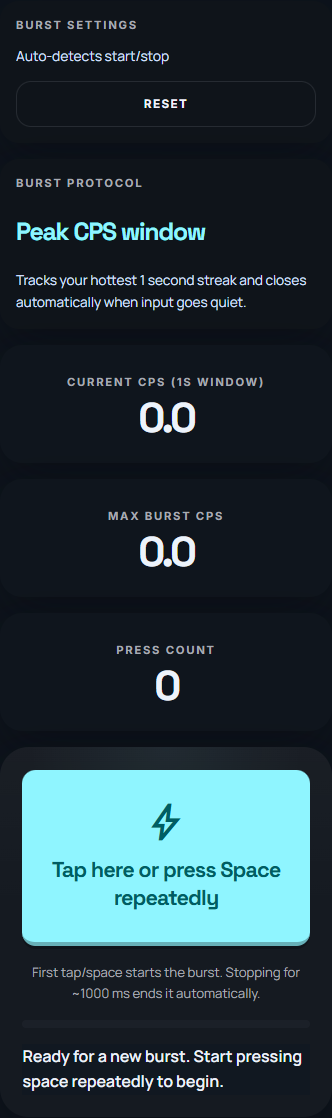
Log the last five runs and compare the average. If results vary widely, slow down and focus on rhythm.
| Issue | What it looks like | Fix |
|---|---|---|
| Grip changes | Large score swings | Reset grip every run |
| Touch delay | Missed taps | Close apps, retry |
| Scroll hits | Run stops early | Lock orientation |
With results of 8.1, 8.0, 8.2, 8.1 and 8.0 CPS, the mean is 8.08 CPS and the median is 8.1 CPS. Save the duration next to those numbers. Combining a one-second run with a ten-second run obscures what you are comparing.
If one attempt was interrupted, record the interruption and rerun the whole comparison using the same rule. A browser score alone cannot separate screen latency, input handling and your tapping speed.
Compare a complete set of mobile results
Enter results from the same phone, duration and tapping method. Keep the slow attempts in the record too.
Compare completed runs with the same device, duration and tapping method. The range is the highest minus the lowest result. These summaries describe the entered sample; they do not diagnose touch latency.
The example includes every value shown above.
Mobile checklist
- Same hand every run
- Close background apps
- Use a 5-10s timer
- Lock orientation
- Log the last 5 results