Keyboard
Keyboard Typing Wrong Characters? Check Your Layout
A key can register correctly while producing the wrong character. Compare the key’s physical position with your active input layout before changing hardware.
Start with one key and one plain-text field
If @ and quotation marks are swapped, check US versus UK English. If Y and Z are swapped, check QWERTY versus QWERTZ. These patterns point to a layout mismatch; they do not prove a damaged switch.
Open a plain-text editor and type the problem character once. Note the physical key and whether you held Shift, AltGr or another modifier. Then try the same key in a second application. Keep the system input layout unchanged while comparing.
If the character is wrong everywhere, inspect the active layout and any remapping software. If the problem happens only in one app, also check that app’s shortcuts and input settings. A key that produces nothing needs a different route from a key that produces the wrong symbol.
| Symptom | Useful first comparison |
|---|---|
| @ and " appear on unexpected keys | US English versus UK English |
| Y becomes Z or Z becomes Y | QWERTY versus the selected QWERTZ layout |
| Symbols change while a modifier is held | Shift/AltGr state and the selected language layout |
| One application behaves differently | Application input settings, shortcuts or remapping |
| A key is missing only in a combination | Ghosting/rollover and intercepted shortcuts |
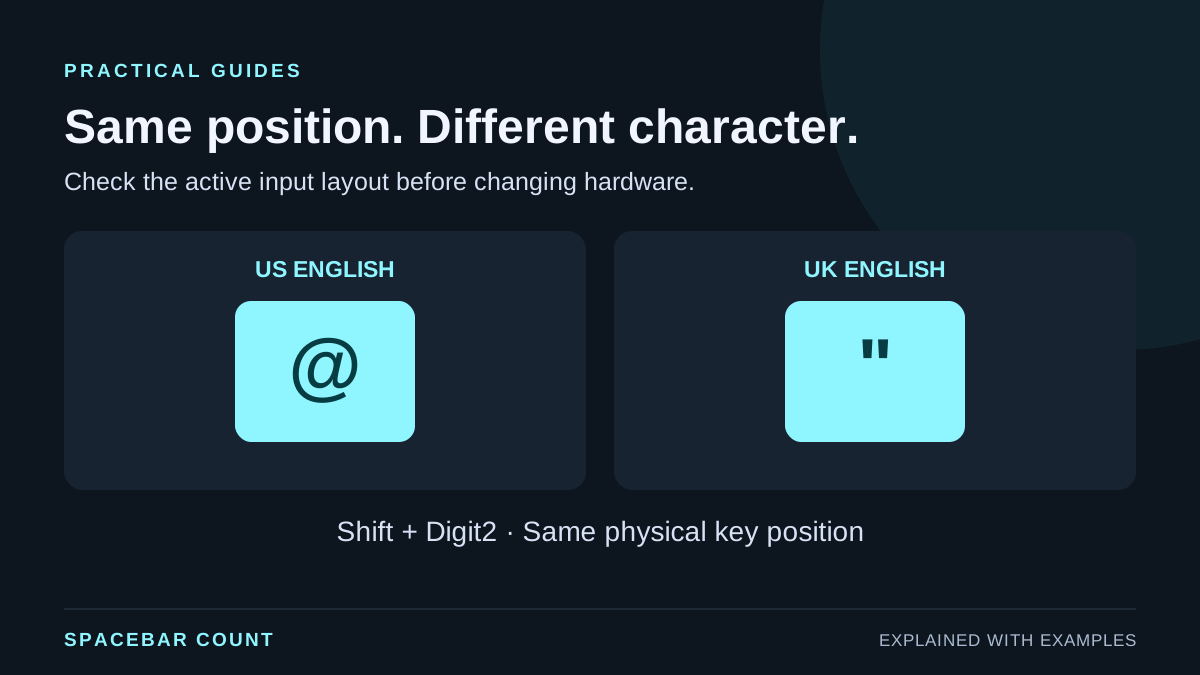
See a physical position produce different characters
Same key position, different output
Switch the layout example and toggle Shift. The highlighted position stays fixed while its illustrated character changes.
Same physical position: Digit2 + Shift
Character: @
Character: "
Illustrated key positions, not a reading of your keyboard. Compare the character with the active system input layout.
US/UK example with Shift held: the Digit2 position produces @ or a quotation mark.
In browser keyboard events, code identifies a
physical-key position, while key describes the key
value after layout and modifiers are taken into account. Seeing
KeyY is not, by itself, proof that the typed
character must be y.
For example, Shift plus the number-two position normally produces @ with US English and a quotation mark with UK English. In a German QWERTZ layout, the position called KeyY produces z. The labels printed on your keyboard do not automatically change the operating system’s input setting.
The illustration is a comparison of known layouts. It does not detect your operating system’s active input source or change your settings.
Check the active layout in Windows
- Look at the input-language indicator on the taskbar. Use Windows + Space to inspect or switch the installed layouts.
- Open Settings → Time & language → Language & region.
- Open the relevant language’s options and inspect its installed keyboards. English as a display language does not guarantee the intended US or UK keyboard layout.
- Select the intended layout and retest the same character in your text editor.
Keep layouts that you deliberately use. Check which layout is active when the problem occurs, especially if you regularly switch languages. A successful test in one app does not establish the active layout in every other app or at the sign-in screen.
If the mismatch returns after a shortcut, compare the layout indicator before and after that shortcut. Write down the change rather than repeatedly reinstalling the keyboard.
Check input sources on a Mac
Open Apple menu → System Settings → Keyboard, then use Edit beside Text Input to inspect Input Sources. Choose the intended source from the menu bar’s Input menu and test the problem character again.
Keyboard Viewer can help identify the character assigned to a key with the current source and modifier keys. It is particularly useful when the physical labels do not include the symbol you want. Input-source names, available sources and shortcuts depend on your configuration.
Compare physical layout and input source separately. An ANSI or ISO keyboard shape describes its key arrangement; it does not identify a language setting on its own.
Use the keyboard tester to record the input
- Open the keyboard tester and choose the matching layout family and layout.
- Focus the test area and press the affected key once.
- Check whether the physical position registers, then compare the character in a plain-text editor.
- Release Shift, AltGr and other modifiers fully before repeating the baseline test.
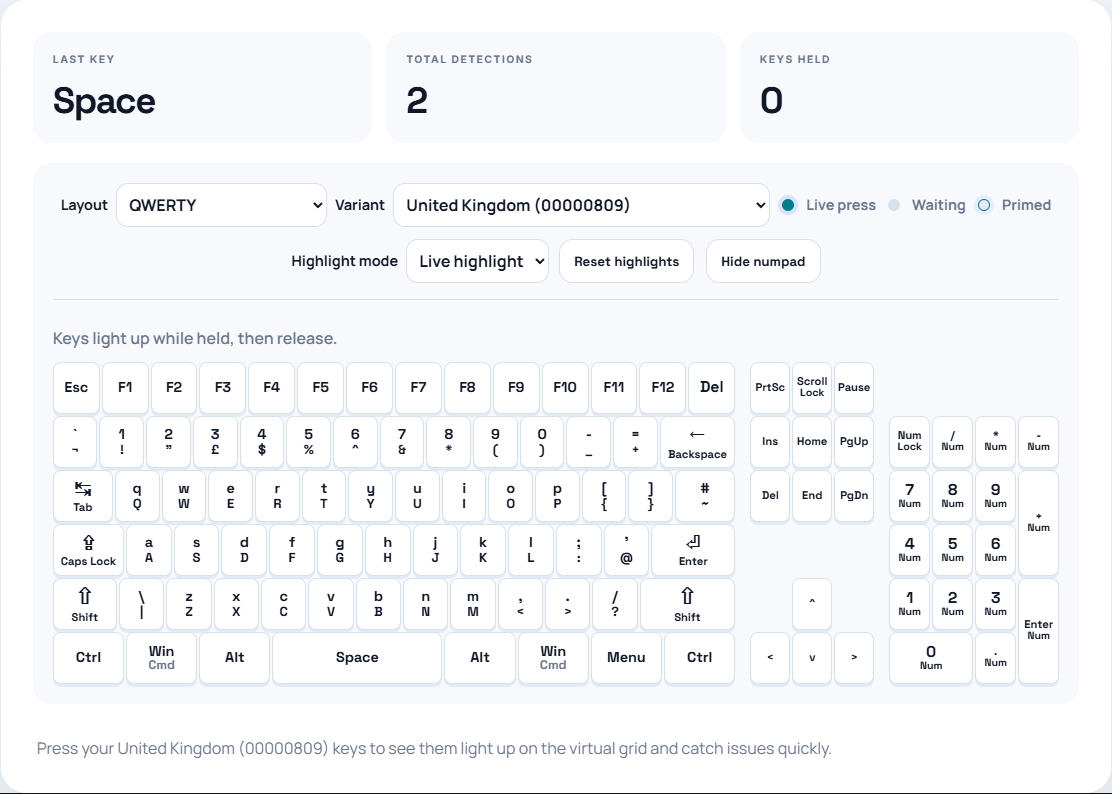
A browser can receive only events delivered to it. Some system shortcuts and input methods handle keys before the page receives them. Dead keys and composition may produce a final character only after another input.
When a layout change does not explain the problem
Check for a modifier that remains active, a function layer, a remapping profile or an app-specific shortcut. Compare another application before changing several settings at once. For a key that never registers, follow the single-key troubleshooting route.
If each key works alone but one disappears in a held combination, use the ghosting and rollover test guide. That is a different observation from receiving the wrong letter.
For a useful support report, record the keyboard model, printed key, active system layout, modifiers, intended character and observed character. Include whether the behavior occurs in more than one application. The tester cannot determine switch health from a character mismatch.